Convert SVG to PNG Privately
Choose SVG images to convert to PNG. Files stay on your device.
How to convert SVG to PNG
- Drop your images into the converter or choose files from your device.
- Select PNG for each file in the queue, then choose Convert All.
- Download individual results or choose Download All to save each converted file.
Your images are processed on your device. Some conversion engines need an internet connection to load. A loaded engine may continue working offline in the current session, but offline availability is not guaranteed.
Export an SVG illustration as a fixed-size PNG
Use PNG when a document, presentation, or upload form needs raster pixels instead of SVG. Set the SVG's intended dimensions before conversion: the PNG is a fixed-size image and cannot stay sharp at every zoom level like the vector source.
Try an original SVG with a transparent background
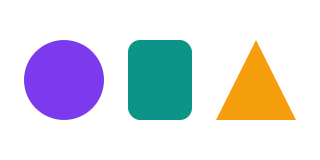
Download the sample below and choose it in the converter. It declares a 320 × 160 canvas and uses only vector shapes, with transparent space around them. Open the PNG and check its dimensions and transparent corners. For a larger export, edit the SVG width and height together before converting; its viewBox keeps the illustration's proportions. This is a reproducible input example, not a file-size benchmark.
What to check in the output
- SVG units become pixels
- The rendered PNG uses the SVG's rendered dimensions. Declare width, height, and a matching viewBox in the source when you need a predictable export. The converter does not provide a raster-resolution control.
- Transparency can be preserved
- PNG supports alpha, so an SVG without an opaque background can produce transparent areas. A white rectangle drawn in the SVG remains a white rectangle.
- Prepare a self-contained SVG
- External images, fonts, scripts, and browser-specific effects may not render as they do in a web page. Embed required image assets and convert lettering to vector paths in your editor when exact typography matters.
If the conversion does not look right
- The PNG is too small or clipped
- Check the SVG's width, height, and viewBox. Shapes outside the declared canvas can be clipped. Adjust the source dimensions and boundaries, then convert again; enlarging the PNG later does not recreate vector detail.
- Letters or images are missing
- Use a self-contained export from your design app. Outline text and embed linked images, then try again. Keep the SVG original for future edits.
- The conversion will not start
- Allow the engine to load while connected, then retry the sample SVG. If the sample works but your file does not, check the source for unsupported features or malformed XML.
Finish preparing your image
- Crop or resize the PNG
Prepare the rendered image for a document or placement.
- Create favicons from the PNG
Turn a square logo export into website icon files.
- Encode the PNG as a data URL
Create an embedded image for a small, self-contained HTML or CSS example.